iZip opens ZIP, ZIPX, RAR, 7z and TAR archives on your Mac, including encrypted ones. You can browse what's inside, extract only the files you need, and create new zip files with optional AES-256 encryption.
Supports the latest macOS Golden Gate. Requires an Intel or Apple processor and macOS Monterey 12.4 or above.

Unzip an email attachment
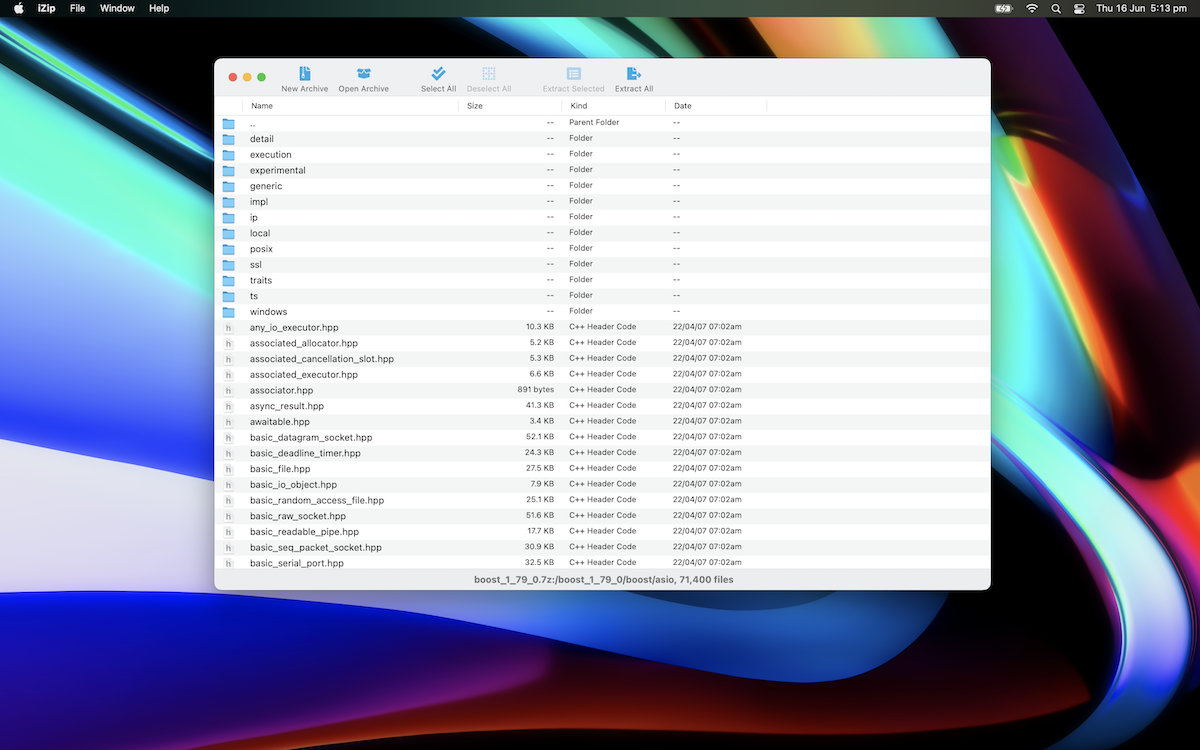
If you receive a .zip, .rar or .7z file as an email attachment, simply double-click to open it with iZip. iZip shows you everything inside, so you can extract just the files you need.
Open and extract an archive
- Open the archive. Double-click a .zip, .rar, .7z, .tar, .tar.gz or any other supported file in Finder. You can also open iZip and click Open Archive.
- Browse the contents. Folders and files are listed with their size, kind and date. Double-click a folder to look inside, or .. to go back up. No more having to extract the whole contents of a large archive just to get at one or two files!
- Choose what to extract. Select the files and folders you want, or click Select All.
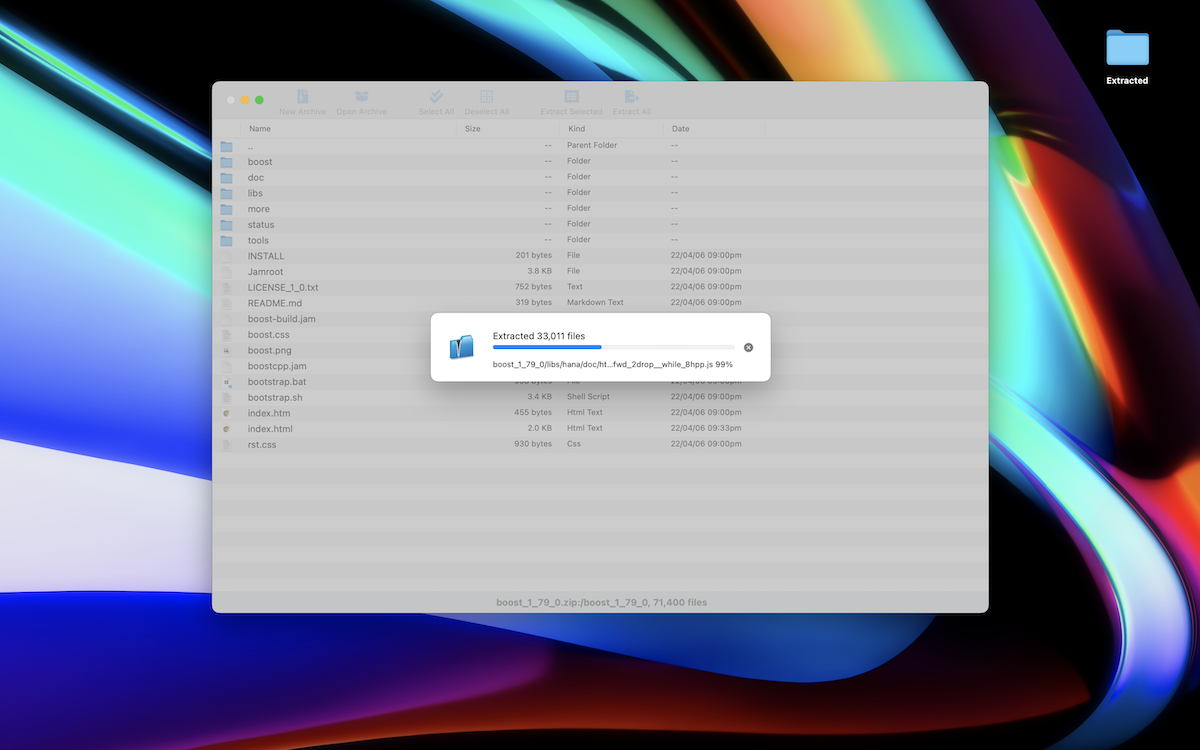
- Extract. Click Extract Selected or Extract All and choose where to save the files. If the archive is encrypted, iZip asks for the password.
Creating Zip Files on Mac
- Open iZip and click New Archive in the toolbar.
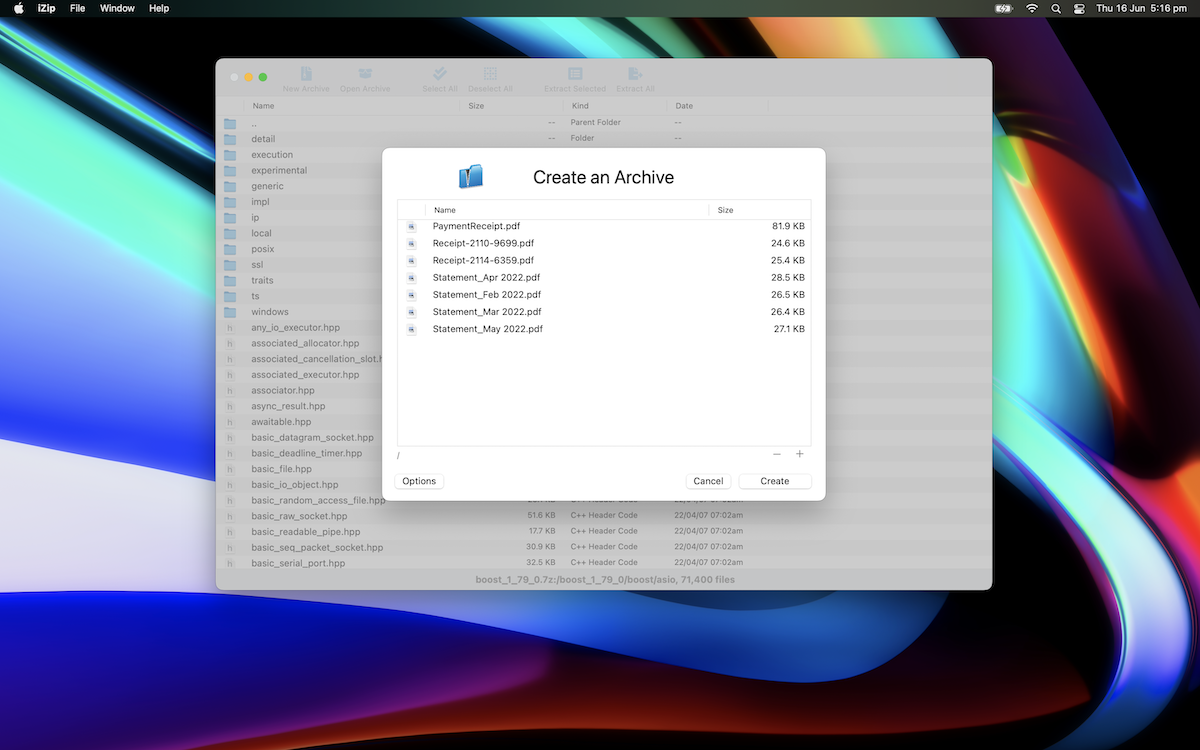
- Add your files. Drag files and folders into the Create an Archive window, or press the + button. Use − to remove anything you added by mistake.
- Set options (optional). Click Options to set extra compression and a secure password for AES-256 encryption.
- Create. Click Create, give your new zip file a name, and wait for iZip to zip up your files.
Archives you create with iZip on your Mac open in iZip for Windows and iPhone & iPad, as well as other modern archivers.
Want to make a 7z archive instead? See how to make a 7z archive on your Mac.